
Stop Oversells With 5–15% Buffers: Inventory Sync Menu for Managers


An inventory sync menu is the control panel that governs how stock changes travel between your selling platform and the systems that fulfill orders, and getting it right starts with two quick checks. First, confirm whether the sync mode is set to manual or automatic, and second, preview the sync queue for anything waiting to go out. Skip these and you invite the two most common headaches in inventory management: overselling and silent sync errors that quietly drift your counts out of true.
TL;DR:
Automatic sync reduces overselling by updating inventory every hour or day but offers less control over exact timing, making it ideal for steady operations.
Preview and manage the sync queue actively, checking for errors, verifying SKUs and quantities, and removing problematic records before pushing updates live.
Buffer stock of 5% to 15% helps prevent overselling during high volume periods, with adjustments based on real-time sync performance and near-miss incidents.
Repeated sync errors often stem from missing fields or validation issues and require thorough logs review and potential escalation if errors persist after correction.
Using a source-of-truth model and timestamp-based resolution helps handle conflicting inventory data, but manual review remains essential during large or complex discrepancies.
Table of Contents
Manual vs automatic synchronization: choosing the right schedule
Preview sync and the sync queue: what to check before records go out
Inventory sync settings: buffer stock and warehouse mapping done right
Synced accounting info and view-only data: what to edit where
Practitioner best practices: buffers, observability, and idempotency
Security and data privacy considerations during synchronization
How inventory sync affects order fulfillment and customer experience
Why MyDigiMenu keeps menu availability in sync without the manual guesswork
Manual vs automatic synchronization: choosing the right schedule
Manual sync means someone actively triggers the update, pushing or pulling inventory counts on demand. Automatic sync runs on a schedule the platform maintains, typically hourly, daily, or weekly, without anyone touching a button. The trade-off is straightforward: automatic sync reduces latency and shrinks the window where overselling can happen, but it also reduces your control over exactly when changes go live.
Manual syncs earn their place during catalog overhauls, price changes tied to inventory, or reconciliation after a stock count, when you want to verify the numbers before they hit every channel. Automatic sync fits steady-state operations where volume is predictable and speed matters more than a final human check, according to setup guidance from the SOS Inventory sync menu documentation.
Before enabling either mode broadly, lock down who can trigger changes.
Limit manual sync permissions to inventory managers and a designated backup, not the entire fulfillment team.
Require a second approval for manual syncs that affect high-volume SKUs or multiple warehouses at once.
Log every manual trigger with a timestamp and the user who initiated it.
Preview sync and the sync queue: what to check before records go out
The sync queue shows every pending record waiting to be pushed or pulled, and the top row typically carries the most urgent status, including any error flagged for that batch. Reviewing it before a sync completes gives you a chance to catch a bad quantity or a mismapped SKU before it reaches a live channel.
Open the preview sync screen and scan the top rows first, since that is where the platform surfaces active errors.
Select any record you want to hold and remove it from the queue, which pauses that item without blocking the rest of the batch.
Cross-reference a queued line against its source invoice or order number to confirm the change is legitimate before letting it proceed.
Use filter or search shortcuts, where available, to jump straight to a specific SKU or warehouse instead of scrolling the full queue.
Managers with edit permissions can usually remove or hold records directly from this screen, according to the SOS Inventory sync menu documentation, which makes the queue your fastest line of defense against a bad push.
Sync errors: how to diagnose and resolve them fast
Most sync errors trace back to a handful of causes: missing required fields, validation failures on quantity or price, a temporary API outage, or an accounting entry the destination system rejects outright. The UI usually marks a failed record with an X or a red flag next to a checkmark for successful ones, and that flag often ties directly back to the top row of the preview queue you already checked.
Missing fields are the most common culprit and usually mean a new SKU was added without a required attribute.
Validation failures often point to a quantity or unit mismatch between the source and destination system.
API outages are temporary and typically resolve once the connected platform’s service is restored.
Rejected accounting entries usually mean the destination ledger has a closed period or a locked record.
A reliable triage flow: check the queue, read the specific error message rather than guessing, correct the source record, then re-run the sync on just that item instead of the whole batch.
Pro Tip: Save the exact error text before you fix anything. If the same message reappears after correction, that’s your signal to pull logs and escalate to platform support or engineering rather than repeating the same fix.
Inventory sync settings: buffer stock and warehouse mapping done right
Minimum and maximum sync counts set the floor and ceiling for how much quantity a channel is allowed to push or pull in a single sync, protecting you from a single bad batch wiping out your entire count. Buffer stock works alongside these limits by holding back a slice of inventory from being sold at all.
Set minimum and maximum sync counts through the platform’s inventory sync settings menu, which typically lists both fields together with buffer stock.
Start buffer stock conservatively and adjust based on how often you see near-miss oversells.
Map every SKU to its correct warehouse or sales channel target before your first full sync, since a wrong mapping applies deductions to the wrong pool of stock.
Run a small-batch test sync after any settings change and check the audit trail before trusting it at full volume.
Practitioners commonly hold back 10% to 15% of available inventory on a marketplace when first turning on sync, according to guidance on reducing overselling across sales channels, a buffer that absorbs timing gaps between when an order lands and when the sync reflects it elsewhere. Minimum and maximum count fields and buffer stock settings are both documented in ShipStation’s inventory sync configuration guide, which also shows the exact menu path for adjusting each.
Synced accounting info and view-only data: what to edit where
Sync menus commonly mirror accounting entities like accounts, bills, credit memos, and journal entries so you can see financial context without leaving the inventory platform. That visibility is useful, but it’s easy to mistake a mirrored record for an editable one.
Fields pulled from the accounting system are typically view-only inside the inventory app, and any correction has to happen back in the accounting software itself, according to the SOS Inventory sync menu documentation. Trying to edit a synced bill or journal entry directly in the sync menu usually does nothing or creates a mismatch on the next sync cycle.
Keep permissions tight here too. Give inventory managers view access to synced accounting data so they can spot discrepancies, but route the actual correction to whoever owns the books. An audit trail that logs both the sync timestamp and the correcting entry in accounting makes reconciliation at month end considerably less painful.
Practitioner best practices: buffers, observability, and idempotency
Help-center steps get you a working sync. Staying reliable at scale takes a few engineering-grade habits layered on top.
Set per-channel buffers between 5% and 15% of sellable inventory, which absorbs the lag between an order landing and the sync catching up. Practitioners recommend holding back 5% to 15% of total sellable inventory per channel to prevent overselling, according to Inventory Source’s guidance on multi-channel sync.
Practice inventory data observability, which means monitoring the shape of the data itself, not just whether the sync job reported success. A sync can complete cleanly while writing a corrupted or mismapped quantity, and the same Inventory Source guidance points to validating payloads against expected schema and watching for unexpected nulls.
Use idempotency keys so a repeated webhook delivery doesn’t apply the same stock decrement twice. Idempotency keys ensure a duplicate delivery of the same event does not double-process the change, according to GeeksforGeeks’ explainer on idempotent API design, which makes them a simple guardrail worth requesting from engineering the moment duplicate events show up in your logs.
Separate event-based updates from scheduled reconciliation, using order events for fast adjustments and a periodic full inventory snapshot to catch and correct any drift the events missed.
Pro Tip: Ask engineering to confirm every inbound webhook carries a stable external order ID before you rely on it for idempotency. Without that ID, retries and duplicates look identical to the system, and no buffer setting will fix that.
A short monitoring checklist keeps these controls honest: watch queue length for unusual buildup, track the error rate per sync run, set an alert for schema mismatches, and flag any sudden negative stock event immediately since that almost always means a duplicate decrement or a mapping error slipped through.
Real-time versus batch synchronization: pros and cons
Real-time sync pushes each inventory change the moment it happens, usually through a webhook or event stream, which keeps every connected channel close to the true count at all times. Batch sync instead collects changes and pushes them on a schedule, whether that’s every fifteen minutes or once a day.

Real-time sync’s advantage is obvious: less time between an order landing and every other channel reflecting the new quantity, which directly reduces overselling risk. Vendor documentation for real-time inventory syncing between platforms frames this speed as the main selling point for sellers running high order volume across several channels. The cost is complexity: real-time systems have to handle a constant stream of events, which means more surface area for duplicate deliveries, out-of-order updates, and the kind of silent corruption that idempotency keys and schema validation exist to catch.
Batch sync trades some of that speed for predictability. Because updates happen on a known schedule, it’s easier to reason about what state the system was in at any given time, and easier to run a manual review before a batch goes out. The downside shows up during high-velocity periods, a flash sale or a holiday rush, where the gap between batches becomes exactly the window where two channels sell the same last unit.
Most mature setups blend the two: real-time events for the moment-to-moment changes that matter most, like an order being placed, paired with a scheduled batch reconciliation that catches anything the real-time layer missed. That combination, described in inventory sync guidance from Inventory Source, gives you the low latency of real-time without losing the safety net of a periodic full check.
Conflict resolution strategies during inventory sync
A conflict happens when two systems report different quantities for the same SKU at the same time, usually because an order was placed on one channel a moment before the last sync updated the others. Resolving this well is less about eliminating conflicts entirely, which isn’t realistic at scale, and more about deciding a consistent rule for which system wins.
The most common approach is a source-of-truth model, where one system, often the warehouse management platform or the primary inventory app, is designated as authoritative, and every other channel treats its number as final during a conflict. Buffer stock plays a supporting role here too, since holding back a small percentage of inventory gives you room to absorb a conflict without it turning into an actual oversell.
Timestamp-based resolution is the other common pattern: whichever change has the most recent timestamp wins, and the older change is discarded or flagged for review. This works well for straightforward quantity updates but can create problems when two legitimate changes, like a return restocking an item and a new order deducting from it, happen close together and need to both apply rather than one overwriting the other.
When a conflict can’t be resolved automatically with confidence, the safest move is to flag it for manual review rather than guessing, using the same preview queue and error state you already check for sync failures. A flagged conflict that sits unresolved for hours is far less costly than a resolved conflict that quietly applied the wrong number to a live channel.

Security and data privacy considerations during synchronization
Inventory data itself is rarely the most sensitive information moving through a sync, but the connections carrying it, API keys, webhook endpoints, and credentials, are worth protecting with the same care as any other business system. A leaked API key for a sync integration can let an outside party read stock levels or, worse, push fraudulent updates that corrupt your counts.
Restrict sync-related credentials to the fewest people who genuinely need them, and rotate API keys on a regular schedule rather than leaving the same key active indefinitely. Where the platform supports it, use webhook signature verification so your system can confirm an inbound update actually came from the connected platform and not from a spoofed request.
Access logging matters as much here as anywhere else in the sync menu. Knowing who changed a sync setting, and when, is often the fastest way to trace how a bad mapping or an unauthorized manual sync happened in the first place. Treat sync configuration changes with the same audit discipline you’d apply to a price change or a refund, since a bad actor with sync access can do real financial damage without ever touching your storefront directly.
How inventory sync affects order fulfillment and customer experience
A delayed or broken sync doesn’t just create a spreadsheet problem, it shows up directly in front of the customer. When a channel’s stock count lags behind reality, a shopper can place an order for an item that’s already sold out elsewhere, which turns into a canceled order, a refund, and a customer who now associates your brand with an out-of-stock surprise.
The reverse problem is just as damaging: a sync that’s too conservative, marking items unavailable when they’re actually in stock, quietly suppresses sales you could have made. This is where buffer stock settings need a light touch, since a buffer set too high protects against oversells at the cost of turning away real, fulfillable orders.
Fulfillment speed depends on the sync too. If a warehouse mapping is wrong, an order can route to a location that doesn’t actually hold the item, adding a delay while staff figures out where the product really is. A clean sync setup, with accurate warehouse targets and a queue that’s checked before it runs, keeps the gap between “order placed” and “order shipped” as short as the fulfillment process itself allows, rather than adding sync-related friction on top of it.
Integration with third-party platforms and APIs
Inventory sync menus typically connect to a mix of systems: the e-commerce platform itself, one or more marketplaces, an accounting package, and sometimes a dedicated warehouse management system. Each of these connections runs on its own API, with its own rate limits, field names, and quirks, which is why a sync that works cleanly with one platform can still throw errors when a second channel is added.
Support documentation for common accounting connectors, like the QuickBooks Online integration guidance from MyWorks, typically lays out both push and pull directions along with manual and scheduled sync options, which is a useful pattern to look for when evaluating any new integration: does it give you a queue to preview, and does it let you choose between manual and automatic control.
When adding a new third-party connection, treat the first sync like a controlled test rather than a full rollout. Map a handful of SKUs first, confirm the mapping lands in the right warehouse or channel target, and only then extend the connection to your full catalog. This is also where our internal guide on connecting online ordering to POS systems is worth a look if your sync challenges extend beyond inventory into order routing itself, since the same mapping principles apply to both.
Audit trails and logging of synchronization activities
Every sync action worth tracking should leave a trace: who triggered a manual sync, what the automatic schedule pushed and when, which records were removed from the queue, and every error message the system returned. Without this trail, diagnosing a recurring problem turns into guesswork, since you’re trying to reconstruct what happened from the current state alone.
A good audit log lets you answer three questions quickly: what changed, who changed it, and when did it happen relative to the order or event that triggered it. That last piece matters more than it sounds, since a sync error that happened three hours after an order was placed points to a very different problem than one that happened three seconds after.
Retain logs long enough to catch slow-moving problems, not just the obvious immediate failures. A schema mismatch that started corrupting a small percentage of records can go unnoticed for weeks if nobody is reviewing logs beyond the last 24 hours, which is part of why data observability, watching the shape of the data itself rather than just job success, matters as much as the logs do.
Balancing speed and control in inventory sync
Operations can fix a lot on its own: adjusting buffer stock, correcting a warehouse mapping, tightening manual sync permissions, or clearing a stuck queue. Some problems need engineering instead. Repeated schema mismatches, duplicate events hitting the same order twice, or inventory numbers that silently drift without any error showing in the queue are all signs the fix belongs above the settings menu.
— Abhi
Why MyDigiMenu keeps menu availability in sync without the manual guesswork
Restaurants and hotels run into a version of this same sync problem every service period: a dish sells out, but the menu still shows it as available across every channel until someone manually updates it. MyDigiMenu centralizes that update in one place, with POS and delivery platform integrations that carry availability changes across your QR menu, tablet menu, and online ordering without a separate sync menu to babysit.
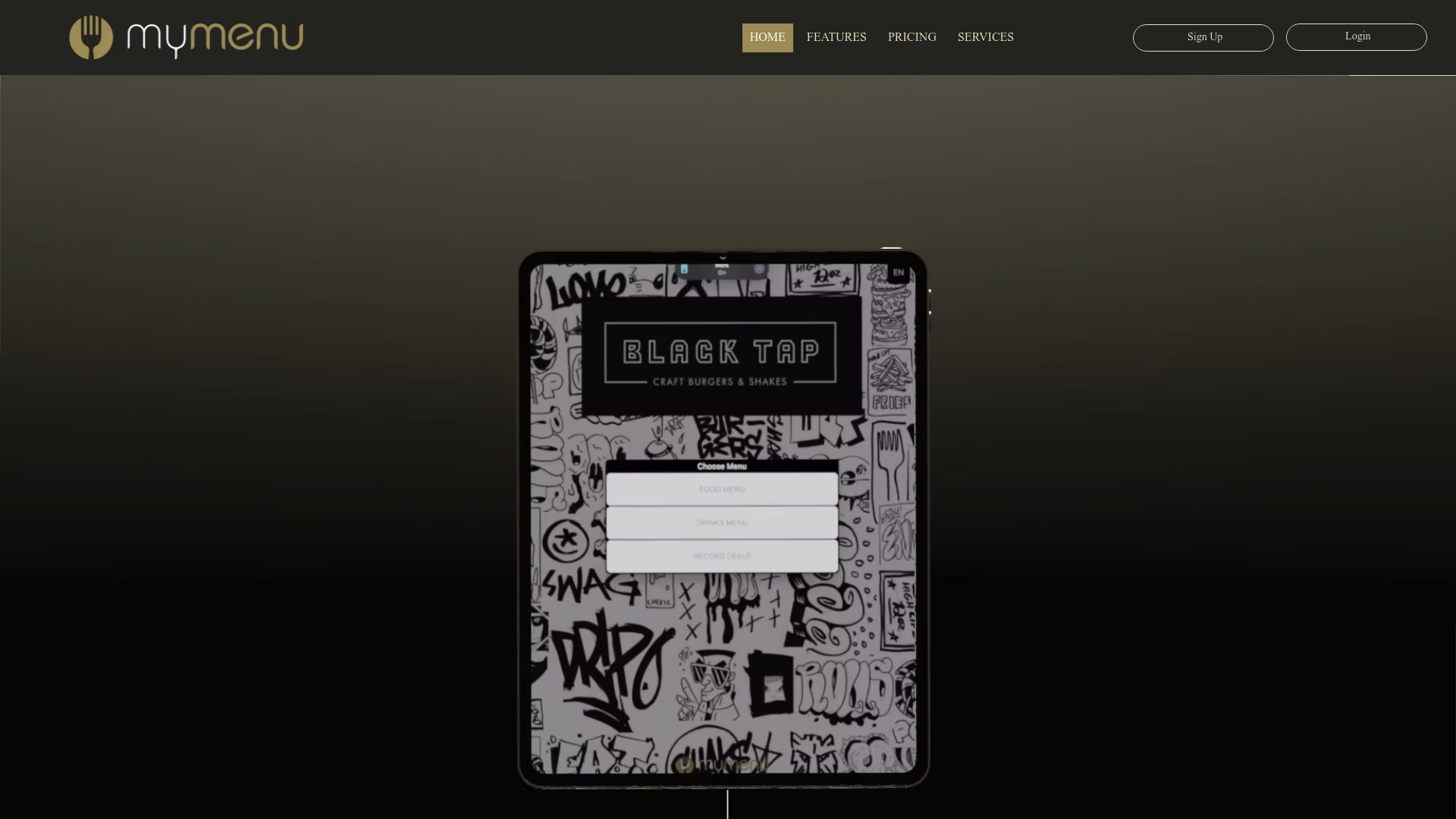
Multi-language and multi-currency support means the same availability update applies everywhere your guests are ordering from, and the Restaurant Reservations Module keeps table availability aligned with the same platform rather than a second disconnected system. If your team is managing sync settings across several tools just to keep one menu accurate, our pricing plans start with the StartUp Menu at $39 per month and scale up to Emerald Menu at $179 per month, each covering direct online ordering with 0% commission built in. Check the plans and see which fits your service.
Where to go for setup steps and deeper engineering guidance
For menu paths and step-by-step settings, start with your platform’s own sync menu documentation, such as the SOS Inventory sync menu guide or ShipStation’s inventory sync settings article. For engineering patterns like idempotency and schema validation, the GeeksforGeeks idempotent API explainer is a solid starting point, and for buffer and overselling strategy, see Inventory Source’s channel guidance. Readers exploring how menu availability interacts with delivery marketplaces may also find Wild Foodz’s overview of online food ordering useful context.
Sources
FAQ
What does an inventory sync menu actually control?
It controls how stock changes move between your selling platform and connected systems, including whether the sync runs manually or on a schedule. It also lets you preview pending changes in a queue, see error states, and view certain accounting data that’s mirrored from another system.
Should I use manual or automatic sync for my store?
Manual sync fits situations where you want to verify changes before they go live, like a catalog overhaul or a stock reconciliation. Automatic sync suits steady, predictable volume where speed matters more than a final manual check, according to the SOS Inventory sync menu documentation.
How much buffer stock should I hold back to avoid overselling?
A common starting point is holding back 5% to 15% of sellable inventory per channel, according to Inventory Source’s guidance on reducing overselling. Adjust that percentage up if you notice frequent near-miss oversells, or down once your sync latency proves reliable.
Why does the same sync error keep coming back after I fix it?
A recurring error usually means the fix addressed the symptom, like a missing field on one record, rather than the underlying cause. If the same error reappears after correction, it’s a sign to pull logs and involve engineering, since it may point to a schema mismatch or a duplicate event rather than a one-off data issue.
Can I edit accounting entries directly from the inventory sync menu?
Generally, no. Accounting entities like bills, credit memos, and journal entries shown in a sync menu are typically view-only, and corrections need to happen in the accounting system itself, according to the SOS Inventory sync menu documentation.
Recommended
snowrider
Great advance further down the mountain