
8 Steps to Prevent Menu Drift with POS Sync for Restaurant Operators


Menu POS sync is the automated connection that keeps your point-of-sale system as the single source of truth for items, prices, and modifiers across every ordering channel. Instead of updating a QR menu, a tablet, and a delivery app separately, one change flows out automatically. The result: fewer 86’d items still showing as available, fewer mismatched prices, and far less manual reconciliation. Whether that update lands instantly or on a schedule depends entirely on how your integration is built.
TL;DR:
Two-way sync is necessary for most restaurants to automatically update POS data and process online orders into kitchen tickets, avoiding manual entry errors.
Batch-based integrations can cause delays of several minutes or hours, meaning sold-out items may still appear available on third-party apps if not configured for instant updates.
Compatibility of menu attributes depends on POS version and supported fields; requesting a detailed attribute list from vendors prevents unexpected missing data.
Centralized menu governance with role-based access and audit logs helps prevent menu drift across multiple locations, ensuring consistency system-wide.
A purpose-built hospitality platform with native connectors, staged publishing, and real-time monitoring simplifies maintenance and reduces the risk of sync failures during peak times.
Table of Contents
What Does Menu POS Sync Actually Do?
At its core, menu POS sync moves data between two systems so nobody has to retype it. That data typically includes item names, prices, modifiers, availability flags, hours, and sometimes tax rules. The mechanism matters less than the direction and the timing, and both determine what you can rely on day to day.
One-way sync pushes data from the POS out to your digital menus, QR ordering pages, or delivery apps. It’s simpler, but it can’t feed online orders back into the POS for kitchen tickets. Two-way sync does both: menu data flows out, and orders placed on any channel flow back in as POS tickets. This is the model most restaurants actually need, because POS integration commonly moves item, price, modifier, availability, and order data automatically in both directions, which is what keeps kitchen staff and front-of-house systems working from the same ticket queue.
Timing is the other variable, and it’s the one operators most often get wrong. Some integrations are event-driven, pushing updates the instant something changes in the POS. Others run on scheduled batch jobs, refreshing every few minutes or hours. A few require manual republishing. Assuming your setup is instant when it’s actually batch-based is a common and costly mistake, especially when you mark an item sold out and it still shows as available on a third-party app for the next twenty minutes.
What typically syncs:
Menu items and descriptions
Prices and price tiers
Modifier groups and add-ons
Category structure and item availability
Business hours and daypart windows
How Do POS Integrations Actually Work?
Three approaches dominate the market, and picking the wrong one for your situation is where most sync headaches start. The right choice depends on your complexity, your existing systems, and how much flexibility you need, not on which option sounds most modern.
Native connectors are prebuilt integrations your POS vendor or menu platform maintains directly. They’re the fastest to set up and usually the most stable, since one company owns both ends. The tradeoff is flexibility. You get what the connector supports, nothing more.
API-led connectivity means your menu platform talks to the POS through its own application programming interface, often using modular calls like a SalesData API, a CreateItem API, or a CreateTicket API. This approach is reusable well beyond menu sync. The same API connections that push menu updates can also feed inventory tracking and sales analytics, which is a real advantage if you plan to expand your tech stack later.
Middleware and adapters sit between systems that can’t talk to each other natively, translating data formats on both sides. This is common when a POS is older or highly customized. Middleware adds a layer of maintenance, but it’s often the only path when a native connector doesn’t exist.
Data typically moves as structured records: JSON payloads carrying PLU or item IDs, modifier group definitions, price fields, and availability windows. The specific fields supported vary widely by POS, which is why a compatibility matrix matters before you commit to any integration path. Recording your POS version, connected peripherals, and exactly which fields are supported prevents the single most common failure mode: assuming a field exists in your POS when it simply isn’t part of that version’s data model.
Pro Tip: Before signing off on any integration, request a field-level list from your vendor showing exactly which menu attributes sync automatically versus which require manual entry on each channel. This one document saves weeks of troubleshooting later.
How Do You Set Up a POS-Synced Menu Step by Step?
Rushing setup is how “small” mismatches become chronic problems. Follow a sequence, and verify at every stage rather than assuming success.
Audit your catalog first. Clean up duplicate items, standardize SKU or PLU numbers, and confirm tax categories and modifier rules are consistent. A messy catalog produces a messy sync no matter how good the integration is.
Confirm your POS version and API credentials. Integrations often behave differently across POS software versions, and outdated credentials are a frequent, avoidable cause of failed connections.
Map items one category at a time. Match each menu item to its corresponding POS record, then map modifiers, combos, dayparts, and any price tiers (dine-in versus delivery, for instance).
Run a pilot with a limited SKU set or a single location. Don’t sync your entire menu on day one. Testing with a subset of items and running test orders through the system surfaces mapping errors while the stakes are still low.
Inject test orders and check order accuracy. Place orders that exercise every modifier group and combo you mapped, then confirm the POS ticket reflects exactly what was ordered, including portion sizes and special instructions.
Brief your staff before go-live. Front-of-house and kitchen teams need to know what changed, especially how sold-out items now get marked and how quickly that status should appear across channels.
Publish and verify. After going live, some platforms require an explicit republish action for updates to appear on customer-facing menus, so don’t assume a saved change is a published change.
Keep a rollback plan ready. If the sync misfires, know exactly how to revert to the last stable menu version without taking ordering offline.
Pro Tip: Treat your first week live like an extended pilot. Sample a handful of orders every shift and compare them against the POS record rather than waiting for a guest complaint to tell you something’s wrong.
A practical checklist for reducing order errors during this phase is worth bookmarking. Mydigimenu’s guide to cutting order errors through POS integration walks through the same sequence with specific attention to where manual entry still sneaks in.
What’s the Best Way to Map Modifiers and Special Pricing?
Modifier mapping is where most sync projects quietly break. A burger with three optional toppings looks simple on a printed menu, but the POS needs each modifier group defined with its own rules for required selections, maximum choices, and price adjustments. Get the structure wrong, and orders arrive at the kitchen missing a topping or charging the wrong add-on price.
Map every modifier group individually rather than bundling options into a single free-text field; the POS needs structured data to bill and print correctly.
Represent combos as a parent SKU linked to child SKUs rather than a single front-end bundle, so the POS records modifiers and portion sizes correctly at the line-item level.
Build happy hour and daypart pricing as time-bound price tiers tied to the same base item, not as separate duplicate menu entries.
Test every combo with a real order injection before launch, confirming the kitchen ticket shows individual components, not just the bundle name.
Set sold-out logic to flow from the POS outward automatically, so marking an item unavailable on the register removes it everywhere within your sync window.
Handle substitutions as modifier options with their own price deltas rather than manual notes, so pricing stays consistent even when a guest customizes an order.
Special items, like limited-time offers or seasonal add-ons, deserve extra caution. They’re often added in a hurry and skip the mapping process entirely, which is exactly how a promotional item ends up on the QR menu with no matching POS record and no way to actually ring it up.
How Do You Stop Menu Drift Across Multiple Locations?
Multi-location operators face a specific version of this problem: menu drift, where each site’s menu slowly diverges from headquarters until nobody can say what’s actually available system-wide. The fix is a governance model, not a bigger spreadsheet.
Treat one central catalog as the authoritative source, with clearly defined rules for what individual locations can override. Price adjustments for regional cost differences, local specials, or temporary 86’d items make sense as overrides. Core recipes, allergen information, and brand-standard descriptions should not be editable at the location level.
Build menu templates with inheritance, so new locations launch with the full corporate catalog and only diverge where explicitly permitted.
Assign role-based access so location managers can toggle availability but can’t edit core pricing or add unapproved items.
Keep audit logs on every menu change so you can trace exactly who edited what and when.
Roll out changes in stages, one region or a small batch of locations first, before pushing to the entire chain.
Block any item not present in the master POS catalog from appearing on a location’s guest-facing menu, which prevents orphaned items that display but can’t actually be ordered.
Pro Tip: Run a weekly cross-location audit comparing three random SKUs across every site’s live menu against the central catalog. It takes ten minutes and catches drift before a guest does.
Chains that formalize this process see fewer pricing disputes and far fewer “why is this item different at the downtown location” calls. Mydigimenu’s breakdown of multi-location menu strategies covers the override logic in more operational detail.
How Do You Troubleshoot and Monitor Sync Failures?
Even a well-built sync will fail occasionally, and the difference between a five-minute fix and a lost dinner service is how fast you catch it. Most failures fall into a handful of predictable categories.
Mismatched PLU or SKU numbers between the menu platform and POS, usually from manual catalog edits that weren’t mirrored on both sides.
Unsupported modifier structures, where a modifier group built on the menu side has no equivalent field in the POS’s data model.
Delayed batch jobs, where scheduled syncs run less frequently than staff expect, leaving stale prices or availability live longer than anyone realizes.
Duplicate order injection, where a network retry sends the same order twice, creating a reconciliation headache at end of day.
Monitor a small set of metrics rather than trying to watch everything. Sync latency (how long a change takes to appear live), error rate on order injection, and the number of manual overrides staff make in a shift all signal whether the integration is healthy. A daily habit works better than a dashboard nobody checks: sample three SKUs across channels, run one test order through the modifier logic, and confirm sales reconcile to the POS by closing.
When something breaks, have a recovery path ready before you need it. That usually means republishing the menu manually, applying a temporary local override while the root cause gets fixed, and reconciling any duplicate orders at end of shift. Escalation should have a clear owner, someone who knows whether the fix lives with the POS vendor, the menu platform, or an internal setting.
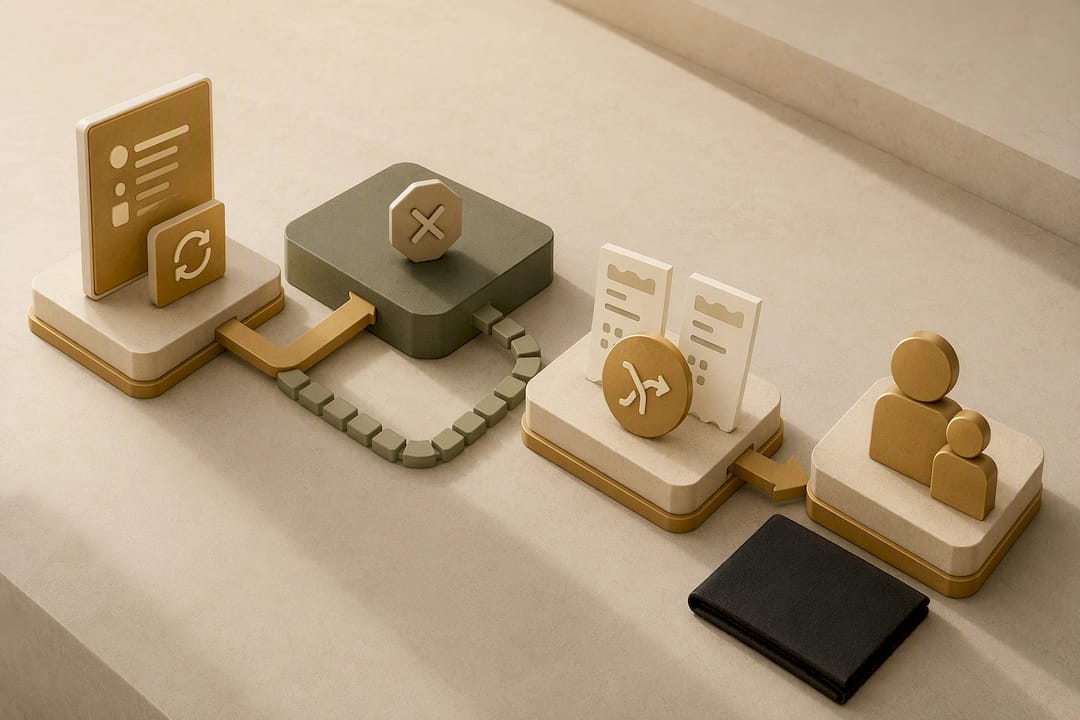
Why a Purpose-Built Menu Platform Simplifies POS Sync
Most of the friction in menu POS sync comes from stitching together tools that were never designed to talk to each other. A platform built specifically for hospitality removes several of those seams at once. The platform supports POS integrations alongside QR and tablet menus, multi-location controls, and rich content like food videos, all inside one system rather than a patchwork of connectors.
When evaluating any vendor for this job, hold them to the same checklist regardless of brand:
Native POS connectors or a documented API for the systems you already run
Mapping and sandbox tools that let you test before anything goes live
Staged publishing so changes roll out to select locations before a full chain-wide push
A visible rollback option for reverting a bad sync
A monitoring dashboard that flags latency and failed order injections in real time
These aren’t nice-to-haves bolted onto a menu tool. They’re the operational backbone that determines whether your sync holds up during a Friday dinner rush or quietly falls apart the first time a modifier group changes.
Should You Handle POS Integration In-House or Bring in a Managed Partner?
DIY integration works fine for a single location running a mainstream POS with a native connector and a straightforward menu. The setup is quick, the failure modes are limited, and you can troubleshoot without specialized staff.
Multi-location chains, custom or legacy POS systems, and complex pricing structures change the math. That’s when a managed integration service becomes worth its cost, adding monitoring, exception handling, and per-location templates you likely can’t staff internally. Either way, run a pilot before full rollout, budget real time for testing, and name one person who owns ongoing sync maintenance. Integration is not a one-time project. It’s a system that needs someone watching it.
— Abhi
Get Your Menu Live and Synced with Mydigimenu
Piecing together a POS connector, a separate QR menu tool, and a manual override process is exactly the fragmented setup that causes menu drift in the first place. This replaces that patchwork with one platform: POS integrations, QR and tablet ordering, and multi-location controls built to work together instead of being duct-taped into cooperation.
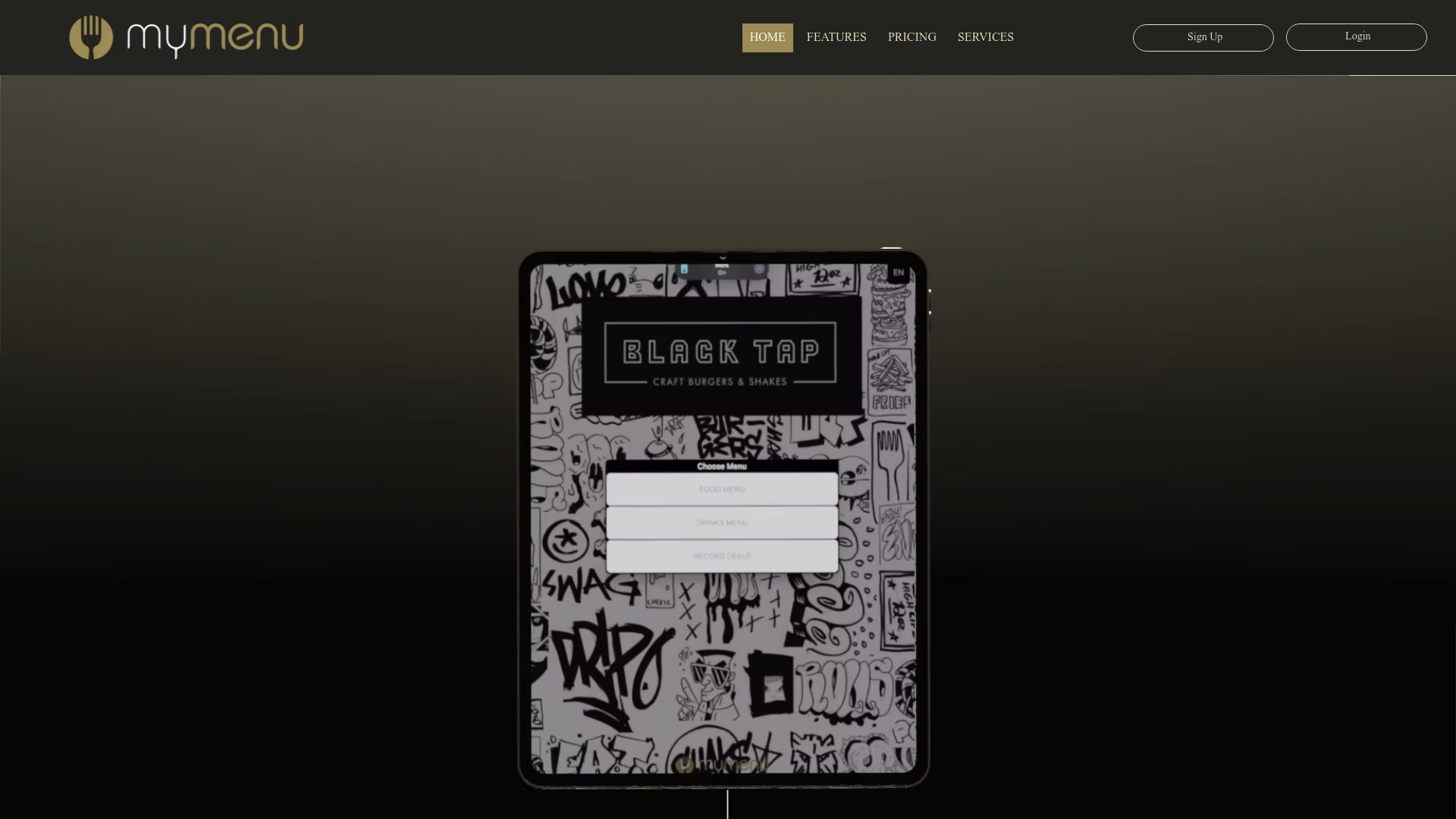
The platform supports the connector and mapping work covered throughout this guide, and it scales from a single-location café to a multi-site chain without forcing you onto a different tool as you grow. If you’re running multiple locations and need centralized menu governance with local override rules, the multi-location menu approach pairs directly with the plans on the pricing page, which lists options from the StartUp Menu tier up through Emerald Menu and Managed Service for teams that want hands-on support. If your dining room also needs table management alongside a synced menu, the Restaurant Reservations Module runs on the same platform. Check current plan pricing and pick the tier that matches your location count and integration needs.
Where to Go Deeper on POS Sync
Vendor documentation is the most reliable place to confirm field-level specifics for your exact POS, since compatibility varies by version. Start with Mulesoft’s overview of POS integration approaches for the tradeoffs between connectors, APIs, and middleware, and review NetSuite’s breakdown of how POS integration moves data for a clear picture of typical data flows. For a broader industry read on how ordering channels are evolving, Wild Foodz’s piece on online food ordering trends is worth a look.
Sources
FAQ
What Is the Difference Between One-Way and Two-Way POS Sync?
One-way sync pushes menu data from the POS to your ordering channels but can’t send orders back. Two-way sync does both, letting online and QR orders flow into the POS as kitchen tickets, which is why most operators need two-way sync rather than a simpler one-directional feed.
Is Menu POS Sync Always Real-Time?
No. Some integrations push updates instantly, while others run on scheduled batch jobs that refresh every few minutes or hours. Confirm which model your setup uses before assuming a menu change appears immediately everywhere.
What Causes Most POS Sync Failures?
Mismatched PLU or SKU numbers, modifier structures the POS doesn’t support, and delayed batch jobs account for most sync problems. A compatibility matrix documenting your POS version and supported fields catches many of these issues before launch.
Does Mydigimenu Integrate with Existing POS Systems?
Yes. Mydigimenu supports POS integrations alongside its QR menu, tablet menu, and multi-location management tools, letting operators sync items, prices, and modifiers from one platform. Current pricing details are listed on the pricing page, with plans available at multiple tiers to match different location counts and integration needs.
How Do You Test a POS Sync Before Going Live?
Run a pilot on a limited set of items or a single location, then inject test orders that exercise every modifier and combo. Verifying test orders against the POS ticket before a full rollout catches mapping errors while the risk is still low.
Recommended
Great tips here on avoiding menu drift! I experienced this firsthand when I didn’t update our specials. Incorporating POS sync, like the steps you mentioned, really makes a difference in keeping everything aligned. Also, have you tried using "run 3" for menu testing? It could be a cool way to fine-tune offerings!
The step-by-step setup and two-way POS sync tips are super practical. Managing menu updates manually can feel like controlling a tricky car in Drift Hunters—one wrong move and everything slides out of control. Automated sync is definitely the way to go for multi-location operators