
Google Analytics for Online Ordering: A Setup Guide


Implement four GA4 ecommerce events, and fire purchase only on the order-confirmation page, and you’ll have accurate, trustworthy data within days. The must-have events for Google Analytics online ordering tracking are:
view_item — a guest opens a dish or product page
add_to_cart — an item lands in the order
begin_checkout — the guest starts the payment flow
purchase — the order confirms and revenue counts
Success looks simple: purchase counts and revenue in GA4 should match your store admin or POS within a small margin. If they don’t, something in the setup is firing early, firing twice, or not firing at all.
Key Takeaways
Accurate GA4 reporting for online ordering depends on firing purchase exactly once, only on the confirmation page, with complete transaction and item parameters.
Point | Details |
Fire purchase correctly | Trigger the purchase event only on the order-confirmation page, never on button clicks. |
Pass complete parameters | Include transaction_id, currency, value, and item-level data on every ecommerce event. |
Test before trusting data | Use GTM Preview and GA4 DebugView with real test orders before relying on any report. |
Reconcile weekly | Compare GA4 revenue totals against your store admin regularly to catch mismatches early. |
Centralize order flow | A platform like Mydigimenu consolidates confirmation pages and POS data, reducing tagging errors. |
Table of Contents
Essential GA4 Ecommerce Events for Online Ordering
Each event in Google Analytics 4 maps to a moment in the guest’s ordering journey, and getting the sequence right is what separates clean reporting from guesswork. GA4’s ecommerce measurement framework uses these events to populate revenue, conversion, and funnel reports automatically, but only if you send them with the right parameters.
view_item / item_list_view capture product-level visibility. If a guest views your grilled salmon ten times but never adds it to an order, that’s a menu problem, not a tracking problem, and you only see it if this event fires correctly — a key insight outlined in the Role of Online Food Ordering for Restaurants and Customers – Wild Foodz by Hotel Entree Brugge.
add_to_cart and begin_checkout should always carry item_id, price, and quantity. Skip these and your reports show that carts filled up, but never explain what filled them.
purchase needs transaction_id, currency, and value at minimum, and it belongs exclusively on the final confirmation screen.
Statistic to remember: the Google Developers ecommerce documentation lists specific dimensions GA4 auto-populates from these parameters, including item category and item name, so incomplete parameters mean incomplete reports, not just missing fields.
The most common mistake? Firing purchase on the “Place Order” button instead of the thank-you page. That single misstep inflates every conversion metric downstream.
Pre-Setup Checklist: Accounts, Access, and Naming Rules
Before anyone touches code, get the administrative groundwork sorted. Skipping this step is the single biggest reason online-ordering GA4 projects stall halfway through.
Create a GA4 property and a web data stream for your ordering site or menu domain.
Confirm you (or your developer) have Editor-level access in GA4, not just Viewer, since event configuration requires it.
Decide your tag strategy upfront: gtag.js for simple sites, Google Tag Manager for anything that changes often, or server-side tagging for high-volume operations.
Document your naming rules for transaction IDs, currency codes, and refund events before anyone writes a line of tracking code.
Confirm your consent management platform is live and configured so revenue events respect guest privacy choices before they fire.
Pro Tip: Write your transaction ID format down in a shared doc before development starts. A mismatched ID format between your POS and GA4 is the number one cause of reconciliation headaches three months later.
Get these five items locked down first, and everything downstream, dataLayer, testing, reporting, moves faster with fewer surprises.
Implementation Patterns: GTM, DataLayer, and Server-Side Tagging
For most online-ordering platforms and digital menus, Google Tag Manager paired with a structured dataLayer is the most practical path. It lets you update tracking logic without redeploying your entire ordering flow every time a menu item changes.
A clean dataLayer push for a completed order typically includes:
transaction_id (unique, matching your order system)
value and currency
items[] with item_id, item_name, item_category, price, and quantity
Server-side tagging is worth adopting once your order volume grows or ad blockers start eating into your data. It improves deduplication and resilience against ad blockers by capturing events through a server endpoint rather than relying entirely on the guest’s browser to fire the tag successfully.
One platform note that trips up a lot of hospitality operators: you need direct access to your order-confirmation hook or template to fire purchase reliably. If your ordering system routes guests through a generic “success” message with no dedicated URL or template, you’ll need to request that access or restructure the confirmation step, because there’s no reliable place to attach the event otherwise.
Pro Tip: If your ordering platform supports webhooks, push order data server-side the moment payment clears. It’s more resilient than waiting for a browser page load that a slow connection might interrupt.
Testing and QA: DebugView, Test Orders, and Revenue Reconciliation
Never launch tracking without testing it against real transactions first. GA4’s DebugView shows events as they happen, which makes catching mistakes immediately far easier than digging through reports days later.
Open GTM Preview mode alongside GA4 DebugView and watch events fire in real time as you browse the ordering flow.
Place one or more real test orders and confirm purchase fires only on the thank-you page, not earlier in the flow.
Check every parameter, transaction_id, items, price, currency, for accuracy, and scan for duplicate purchase events firing from both client and server sources.
Reconcile GA4 totals against your store admin weekly, and investigate any gap immediately rather than letting it compound.
Fire the purchase event only on the final confirmation page. Firing it earlier, on an add-to-cart click or a checkout button, inflates conversions with intent rather than completed revenue, and that gap only grows the longer it goes unnoticed.
Weekly reconciliation catches attribution mismatches before they become a quarter’s worth of bad decisions.
Key Metrics and Reports to Monitor for Online Ordering
Once events fire cleanly, the real payoff is in what you monitor weekly. A handful of metrics matter far more than the dozens GA4 makes available.
Ecommerce purchases and total revenue — your baseline health check, reconciled against POS numbers.
Average order value (AOV) — track this against menu changes to see which additions or removals move the number.
Conversion rate — sessions that result in a completed order.
Add-to-cart rate and begin-checkout rate — early funnel signals that catch friction before it hits revenue.
Checkout abandonment — the single biggest lever for recovering lost orders.
The number that matters most: GA4’s prebuilt ecommerce dimensions let you break every one of these metrics down by item category, so a slipping conversion rate on one dish category shows up clearly instead of getting buried in a site-wide average.
For deeper analysis, GA4’s Explore section supports custom builds for lifetime value, repeat-purchase cohorts, and product-level revenue contribution. When you see a funnel drop-off concentrated at checkout, that’s your signal to fix payment friction first. When it’s concentrated at add-to-cart, the menu presentation itself likely needs attention, a distinction menu analytics reporting can help clarify further.
Publisher Perspective: What Mydigimenu Sees in Analytics Integrations
Working with restaurants and hotels on digital ordering flows day in and day out surfaces the same integration friction repeatedly, and it’s rarely the analytics platform’s fault.
Order-confirmation hooks and webhooks matter more than any dashboard. When a platform can push clean, structured order data the moment payment clears, half the tagging headaches disappear before they start.
QR-menu ordering narrows the tracking surface considerably. A guest scanning a table code moves through a consistent URL structure to one centralized confirmation page, rather than bouncing across a fragmented, multi-app ordering experience.
The operational payoff shows up fast: fewer tagging errors, faster revenue reconciliation, and insight that arrives in days rather than weeks of chasing down mismatched transaction IDs across systems.
Tracking Promotions and Coupon Usage in Online Orders
Promotions are where a lot of online-ordering analytics quietly falls apart. A guest applies a 15% coupon, the order still needs to report accurate revenue, and most setups get this wrong by either ignoring the discount entirely or subtracting it from value without documenting why.
GA4 supports dedicated promotion events, view_promotion and select_promotion, alongside standard purchase parameters that can carry coupon as a named field. The Measure ecommerce documentation confirms coupon codes populate as a recognized dimension when passed correctly, which means you can eventually answer questions like “which promo code drives the highest average order value” instead of guessing.
The practical setup looks like this: pass the coupon parameter on both begin_checkout and purchase, using the exact promo code string your ordering system generates. Keep the value field reflecting the final, discounted total, since that’s the actual revenue collected, not the pre-discount menu price. If you run multiple simultaneous promotions, say a happy-hour discount and a first-order code, tag them with distinct identifiers so GA4’s reporting can separate their individual performance rather than lumping every discount into one bucket.
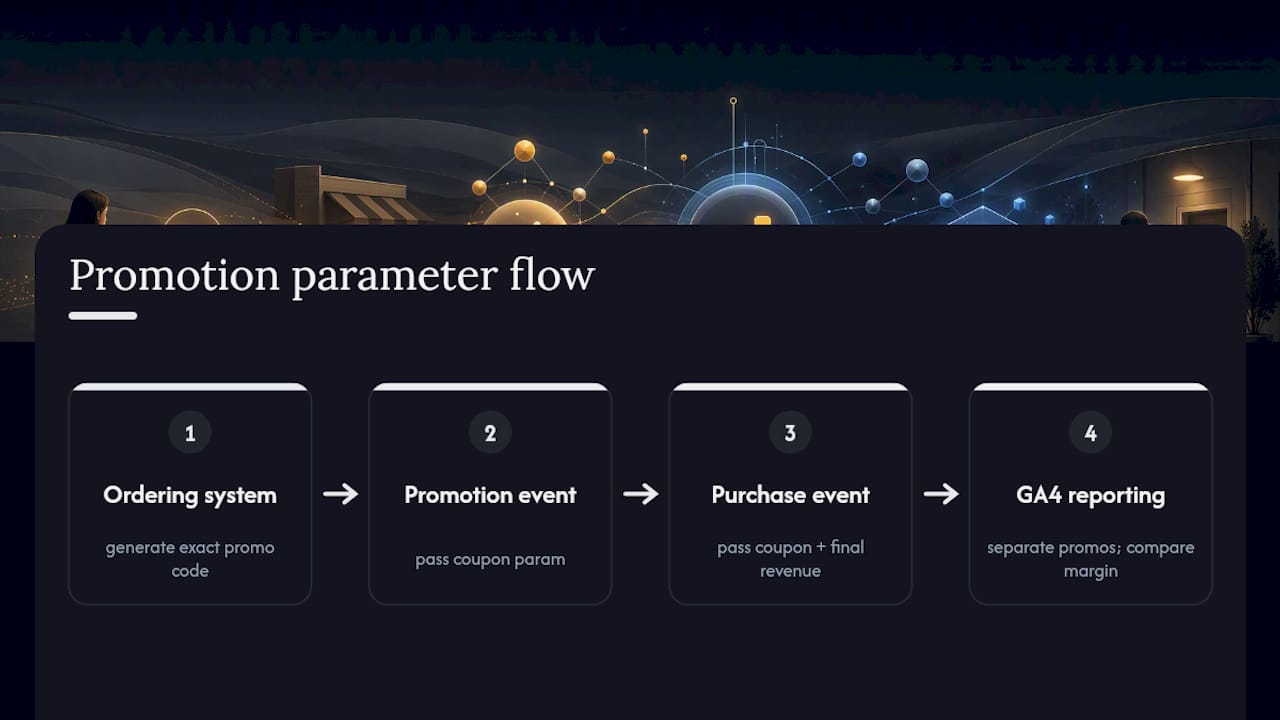
One frequent oversight: teams track that a coupon was used but never confirm whether coupon-driven orders carry a lower or higher margin once the discount is applied. Pull that comparison quarterly. A promotion that drives volume but erodes margin isn’t actually a win, even if the conversion numbers look impressive on the surface.
Linking Google Analytics With Google Ads for Remarketing
If you’re running any paid traffic toward your online-ordering menu, linking GA4 to Google Ads is one of the highest-leverage moves available, and it takes about ten minutes to configure once your ecommerce events are firing correctly.
The link happens inside GA4’s Admin panel under Product Links. Once connected, GA4’s conversion data (specifically your purchase event) becomes available as a Google Ads conversion action, which means your ad spend gets optimized against actual completed orders rather than clicks or landing-page visits. This distinction matters more than it sounds: optimizing for clicks fills your funnel with browsers, while optimizing for purchases fills it with buyers.
The link also unlocks remarketing audiences built from real ordering behavior. You can build a segment of guests who reached begin_checkout but never completed purchase, then serve them a targeted ad reminding them their order is waiting. Restaurants running weekend specials often see this audience convert at a noticeably higher rate than cold traffic, since these are guests who already made most of the decision.
One setup detail that trips people up: audience signals need enough volume to activate. A single-location restaurant with modest online-order traffic may need a few weeks of data before remarketing lists reach a usable size. Don’t panic if the audience count sits at zero for the first several days. It’s building, not broken.
Setting Up User ID Tracking Across Devices
A guest browses your menu on their phone during lunch, then completes the order from a desktop that evening. Without user ID tracking, GA4 sees these as two entirely separate people, which quietly distorts your conversion rate and makes your marketing look less effective than it actually is.
User-ID tracking solves this by attaching a persistent, non-personally-identifiable identifier to a guest’s session whenever they log in or authenticate, whether through a loyalty account, a saved profile, or a social login. GA4 then stitches sessions together under that ID rather than treating each device as a stranger.
Setting it up requires three pieces working together: a unique ID generated at login (never an email address or name, for privacy reasons), a dataLayer variable capturing that ID on every page where the guest is authenticated, and a GA4 User-ID data stream configured to receive it. Once connected, GA4’s cross-device reports show the real path guests take, browse on mobile, order on desktop, reorder from a tablet a week later.

For hospitality operators specifically, this matters most when guest profiles and loyalty programs are involved. A platform that captures guest identity once and carries it across every ordering touchpoint gives you a genuine behavioral picture instead of a fragmented one. Without it, you’re likely undercounting your most loyal guests simply because they switch devices between browsing and ordering.
Configuring Cross-Domain Tracking for Multi-Domain Checkout
If your ordering flow starts on your restaurant’s main website and hands off to a separate checkout domain, maybe a payment processor or a third-party ordering platform, GA4 needs explicit configuration to follow that guest across the boundary. Without it, the handoff looks like two unrelated sessions from two unrelated visitors, and your attribution data breaks at exactly the moment it matters most.
The fix lives in GA4’s data stream settings under “Configure your domains.” You list every domain involved in the ordering journey there, and GA4 automatically appends a linking parameter to outbound links between them, preserving the session and click ID as the guest moves from your main site to checkout.
A few details matter here. First, both domains need the same GA4 measurement ID configured, since cross-domain tracking only works within a single property, not across separate GA4 accounts. Second, test this thoroughly using GA4 DebugView before trusting the data. Click through your own ordering flow and confirm the session ID stays consistent across the domain switch rather than resetting.
The most frequent failure point: third-party checkout providers that redirect through their own tracking parameters, which can override or strip GA4’s linking parameter entirely. If your checkout partner controls that redirect, confirm with their technical documentation that GA4 parameters pass through untouched, or you’ll see phantom traffic spikes on the checkout domain with no discernible source.
Using Custom Dimensions for Product Categories and Segments
GA4’s standard reports cover a lot of ground, but the moment you want to know “which appetizer category drives the highest repeat-order rate among loyalty members,” you’re in custom dimension territory.
Custom dimensions let you attach extra context to standard events, information GA4 doesn’t collect by default. For online ordering, the two most valuable additions are product category (appetizer, entrée, dessert, beverage) and customer segment (new guest, loyalty member, VIP tier). Both get passed as event parameters, then registered as custom dimensions inside GA4’s Admin panel under Custom Definitions.
The setup itself is straightforward: add item_category to your existing items[] array in the add_to_cart, begin_checkout, and purchase events, most platforms already support this parameter natively, then register a corresponding custom dimension so it surfaces in Explore reports. For customer segment, pass a parameter like guest_type alongside your user ID data, populated from your loyalty or CRM system at the point of order.
Once these dimensions are live, patterns emerge that standard reports never surface. You might discover loyalty members over-index heavily on desserts compared to new guests, a genuinely useful insight for targeted promotions. Or that one product category drives disproportionate repeat visits, suggesting it deserves more menu real estate. Structured ecommerce data models built around these dimensions make this kind of segmentation far faster to analyze than digging through raw event data manually.
Data Privacy Compliance for Ecommerce Tracking
Collecting order and behavioral data comes with real legal obligations, and getting this wrong exposes your business to regulatory risk regardless of how clean your tracking setup is otherwise.
Under the EU’s GDPR, guests must give explicit, informed consent before you collect personally identifiable data or set tracking cookies, and that consent has to be as easy to withdraw as it was to give. If any portion of your guest base is in the EU or EEA, a consent management platform gated in front of GA4’s tracking scripts is not optional. California’s CCPA takes a different approach for California residents: it centers on disclosure and opt-out rights rather than opt-in consent, meaning guests need a clear way to request that you not sell or share their data.
Practically, this means a few non-negotiables. Never pass personally identifiable information, names, emails, exact addresses, directly into GA4 event parameters; use hashed or tokenized identifiers instead. Configure GA4’s consent mode so that revenue events adjust their data collection based on the guest’s actual consent state, rather than firing at full data resolution regardless of what the guest chose. And keep a clear, accessible privacy policy that specifically names Google Analytics as a data processor, since vague or missing disclosure is one of the more common compliance gaps regulators flag.
None of this is a one-time setup. Review your consent flows whenever you add a new tracking parameter or connect a new integration, since each addition potentially changes what data you’re collecting and from whom.
Why the “Set It and Forget It” Approach Fails
Most advice on Google Analytics for online ordering treats setup as a one-time technical task: install the events, confirm they fire, move on. That’s incomplete, and it’s the reason so many restaurant and hospitality operators end up with GA4 dashboards nobody trusts six months later.
The real issue is that ordering platforms change constantly. Menus update, promotions rotate, checkout flows get redesigned for a new payment provider. Every one of those changes is a chance for a tracking parameter to silently break. The operators who get lasting value from GA4 are the ones who treat weekly reconciliation as a habit, not a launch-day checklist item.
I’d also push back on the common assumption that more custom dimensions automatically mean better insight. Layering in product category, customer segment, and a dozen other parameters sounds thorough, but it’s worthless if the foundational purchase event isn’t firing exactly once per order. Get the basics rock solid first, accurate revenue, no duplicates, clean reconciliation, before you chase segmentation depth. Precision beats sophistication every time here.
Mydigimenu: Fewer Tracking Errors, Faster Setup
Building GA4 tracking on top of a fragmented ordering stack, one system for the menu, another for checkout, a third for confirmations, is where most of the tagging errors covered above actually originate. Mydigimenu centralizes that entire flow into one platform, so there’s a single, consistent order-confirmation point instead of three different templates to instrument separately.
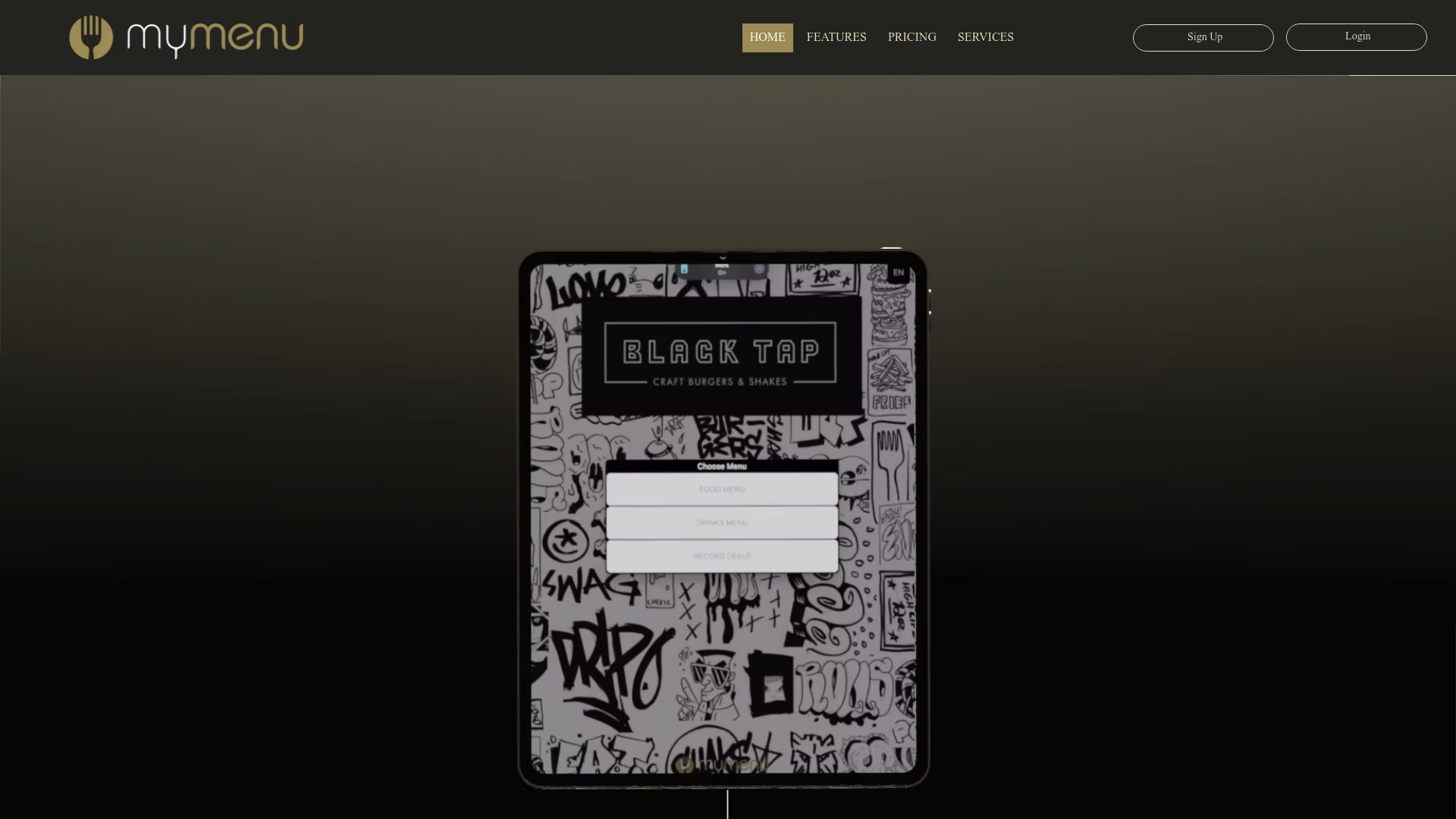
Because Mydigimenu’s digital menu and ordering system already integrates with POS and payment platforms, the order data arriving at your confirmation page comes structured and clean, with transaction IDs, item categories, and pricing already organized the way GA4 expects. That means less custom dataLayer engineering and fewer surprises during testing. For restaurants running QR-code ordering specifically, every guest funnels through the same predictable URL path, which is exactly the kind of consistency that makes cross-device and remarketing tracking actually reliable.
If your current ordering setup makes reconciling revenue feel like detective work, visit Mydigimenu’s product page to see how a centralized ordering platform simplifies the analytics side of running your online orders.
Frequently Asked Questions
Is Google Analytics free to use for tracking online orders? Yes, GA4 is free for standard web properties. Costs only appear if you need enterprise features or BigQuery data exports, which most single-location or small-chain restaurants never require.
Which GA4 event should fire when a guest completes an order? The purchase event, fired exclusively on the order-confirmation or thank-you page, with transaction_id, currency, and value as required parameters.
How do I know if my Google Analytics online ordering setup is working correctly? Compare GA4’s reported revenue and order counts against your POS or store admin weekly. Small discrepancies are normal; large or growing gaps usually mean a duplicate or misfired purchase event.
Do I need Google Tag Manager, or can I install GA4 directly? Direct gtag.js installation works for simple, rarely-changing sites. GTM is worth the setup time for any ordering platform where menus, promotions, or checkout flows change often.
Can GA4 track which promo codes drive the most orders? Yes. Pass the coupon parameter on your begin_checkout and purchase events, and GA4 will report performance by promo code once enough order volume accumulates.
Sources
Recommended
Comments